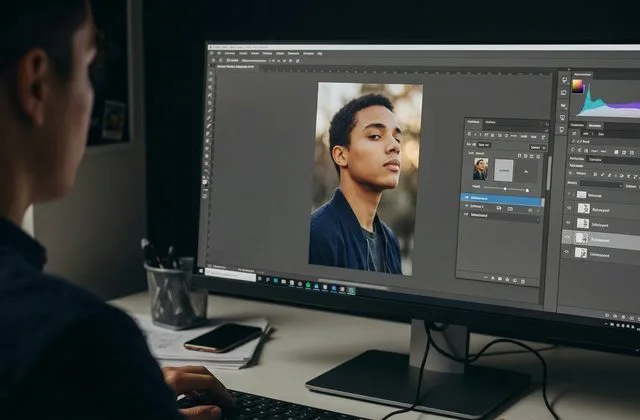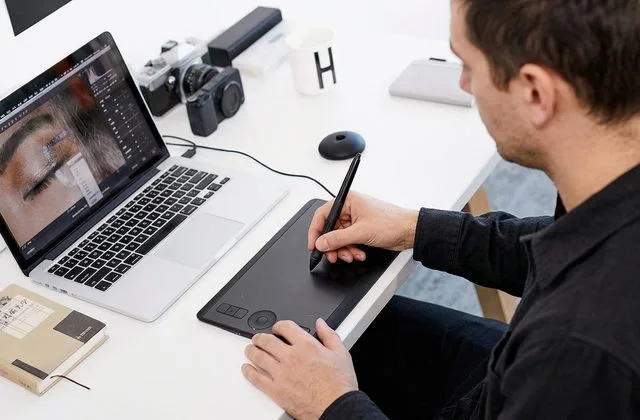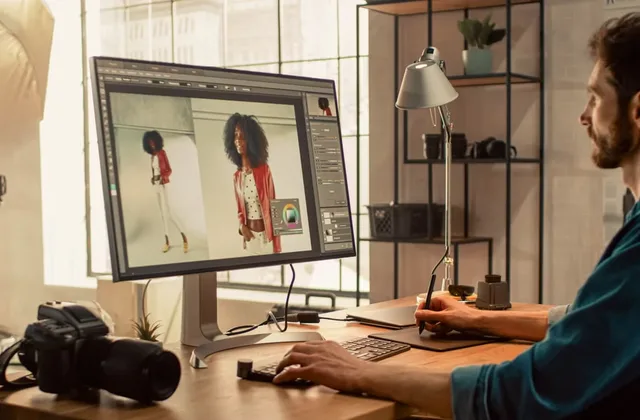

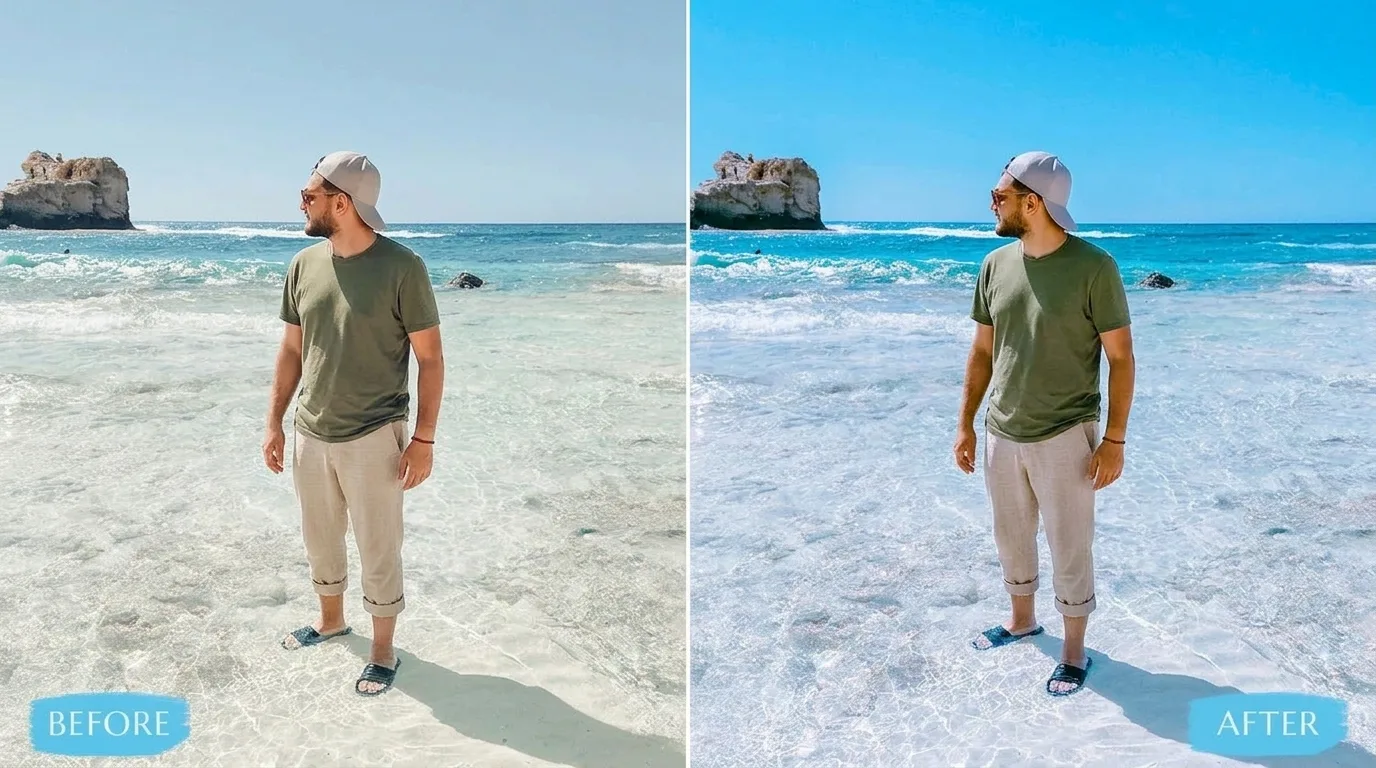
Color grading is where you deliberately shift the colors in a photo to set a mood or lock in a style. It happens after color correction — that’s the technical step where you make whites white and skin look natural. Think of it this way: color correction makes a photo accurate. Color grading makes it feel like something. A warm gold grade feels cozy and nostalgic. A cool teal grade feels moody and cinematic. That teal-and-orange look in every Hollywood blockbuster? Color grading. And yeah — you can do it with the free app already on your phone.
Ever scrolled Instagram and recognized a photographer’s shot before you even saw their name? That’s a consistent color grade working. This guide walks through what it actually is, why it’s worth your time, the six looks every photographer should know, and the exact step-by-step workflow pros use — plus the five mistakes that make a grade look cheap and fake.
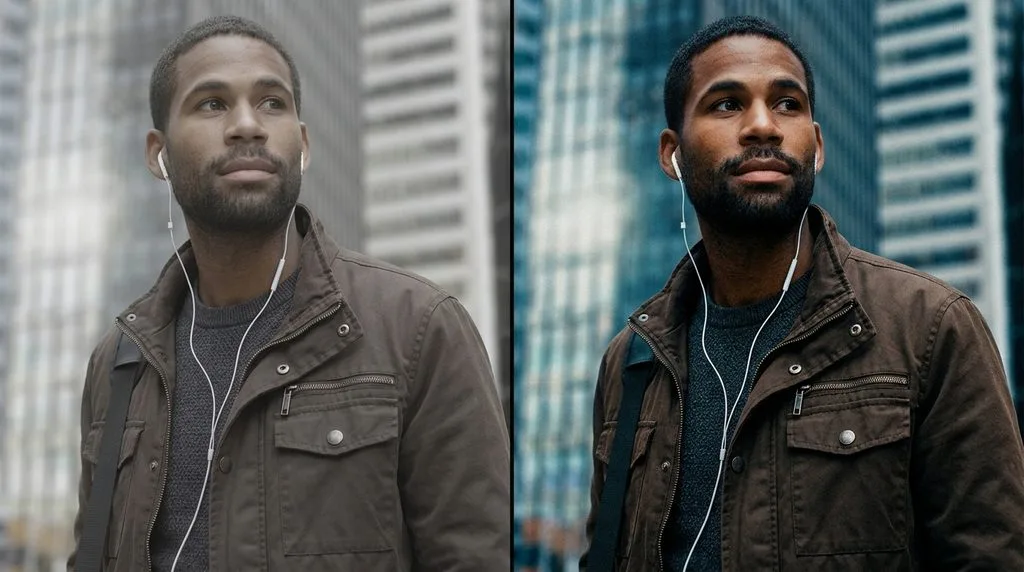
So What Is Color Grading, Exactly?
It started in Hollywood. Colorists would sit in dark rooms with expensive consoles and tweak the hues of every scene so a whole movie felt like one piece — cold blue for a thriller, warm amber for a romance, sickly green for a sci-fi dystopia. The technique jumped to photography once editing software got good enough, and now every serious photographer uses it in some form.
At its simplest, color grading means adjusting hue, saturation, and brightness across the shadows, midtones, and highlights of an image. It’s not about making the photo “correct” — it’s about making it yours. You nudge the shadows toward teal, warm up the highlights with a touch of gold, maybe lift the blacks a little for that faded film look, and suddenly a photo you took on a random Tuesday looks like a still from a movie.
Here’s the thing that trips up almost everyone at first. Color grading and color correction are not the same thing, and mixing them up is the number one reason edits look off.
Color Grading vs Color Correction: There’s a Real Difference
You have to do them in the right order, and they do completely different jobs. Here’s the plain-English version.
| Color Correction | Color Grading | |
|---|---|---|
| What it’s for | Making the image accurate and neutral | Making the image feel a certain way |
| What you adjust | White balance, exposure, contrast | Hue, saturation, split toning, LUTs |
| When you do it | Always first | Always second |
| Is there a “right” answer? | Yes — whites should be white | No — it’s creative |
| Analogy | Stretching a canvas and priming it white | Painting the actual artwork |
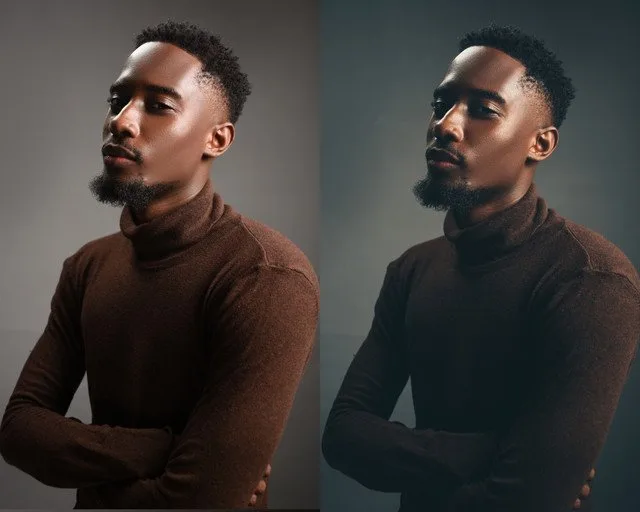
Color correction fixes what went wrong in camera: a too-warm white balance from indoor lighting, underexposed shadows, a green cast from fluorescent lights. You fix those until the photo looks like what your eyes actually saw. Then you grade. If you grade a photo that hasn’t been corrected, you’re building style on a broken foundation, and every tweak just makes the problem worse. A good color grading walkthrough will always start with correction before touching a single creative slider.
Why It’s Worth Bothering With
A great grade does three things, and none of them are “make the photo pretty.”
It sets the emotional temperature. Colors talk straight to your subconscious. A viewer feels the mood of your photo before they consciously notice the composition. The same portrait can feel warm and approachable or cold and distant just by shifting the color balance 20 degrees.
It builds your signature look. Consistency is how people recognize you. When every photo you post shares the same underlying color character, people start spotting your work in a feed — and recognition is the first step toward a following and, eventually, paying clients.
It holds a series together. If you shot a wedding across three locations and four lighting setups, the raw files will look like four different weddings. One consistent grade ties them into one story. That’s why film studios grade entire movies, not individual scenes — the grade is the glue.
What Each Color Actually Makes People Feel
Before you touch a slider, know what feeling you’re going for. Here’s what the big color families tend to do to a viewer.
| Color Family | How It Makes People Feel | Best For |
|---|---|---|
| Warm gold / amber | Nostalgia, comfort, romance | Golden-hour portraits, weddings, family |
| Teal / cool blue | Calm, melancholy, cinematic | Dramatic portraits, urban scenes, moody stuff |
| Green / sickly tones | Unease, artificiality, decay | Sci-fi, horror, edgy editorial |
| Desaturated / muted | Timelessness, seriousness, fine art | Documentary, editorial, near-black-and-white |
| High saturation / vibrant | Energy, youth, excitement | Travel, sports, fashion, social content |
| Magenta / pink tint | Dreaminess, softness, femininity | Beauty, maternity, creative portraits |
This isn’t a rulebook — it’s a starting point. The best grades often break these expectations in interesting ways. But if you’re new, matching the grade to the mood of the scene gets you about 80% of the way there.
Six Looks Every Photographer Should Know
You don’t have to invent a style from scratch. These six looks have stuck around because they work. Learn each one, then twist them into something that’s yours.
1. Teal & Orange — The Blockbuster
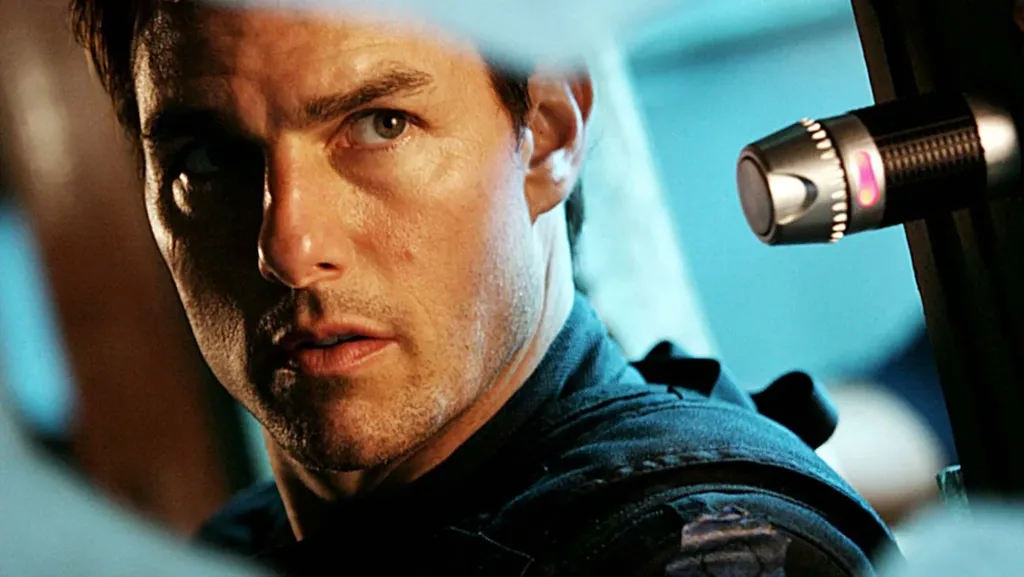
You see this in almost every action movie. You push the shadows and backgrounds toward teal, and you let skin tones — which naturally sit in the orange range — stay warm. What you get is maximum color contrast, with faces that pop right off the screen. It works because teal and orange are opposites on the color wheel, so each makes the other look more vivid. Subtle looks cinematic. Push it too far and it looks like a 2012 YouTube tutorial. Restraint is everything.
2. Bleach Bypass — The Gritty Classic
Made famous by war films and gritty dramas, bleach bypass cranks contrast, pulls saturation down, and keeps blacks deep and rich. It looks like the film skipped the bleach step in development — hence the name. Perfect for street photography, urban decay, anything where you want texture and edge over beauty.
3. Vintage / Film Matte — The Nostalgia Play
You lift the black point slightly so shadows turn soft gray, fade the colors, and add a touch of warm grain. It looks like your dad’s 1970s Kodachrome slides. This look dominates lifestyle, travel, and wedding photography because it instantly makes a scene feel timeless and warm. The trick? Don’t crush the blacks — lift them. That one move is 70% of the vintage look.
4. Moody & Dark — The Fine-Art Feel
Deep shadows, low saturation, a cool overall cast. You intentionally underexpose a little in post, pull detail only from the parts of the frame that matter, and let everything else fall into shadow. It’s the go-to for fine-art portraits, forest landscapes, anything where you want the viewer to lean in and really look.
5. Warm Golden — The Crowd-Pleaser
Boost the orange and yellow channels, warm the highlights, add a gentle glow. This is the look of golden hour — even when you shot at noon. It’s universally flattering on skin, kills it on social media, and is the safest default for portrait and wedding work.
6. Cross-Processed — The Wild Card
Originally a film-lab accident (developing slide film in negative chemicals and vice versa), cross-processing throws up unpredictable color shifts — often green shadows with magenta highlights. It’s loud, it’s polarizing, and it’s perfect for fashion editorial and music stuff where you want to feel intentionally off-kilter.
The Tools You Actually Need (And Which Ones to Skip)
You don’t need a Hollywood color suite. Here’s what pros actually use, from most to least common.
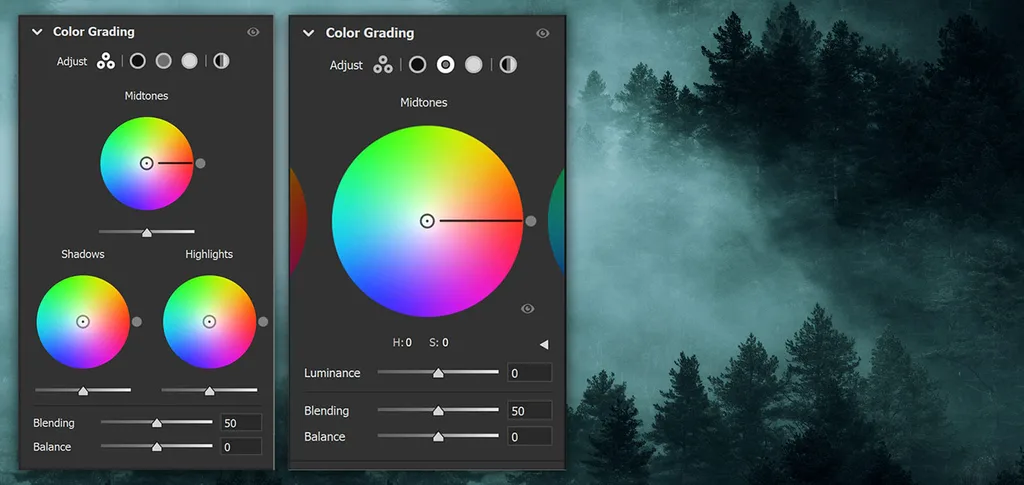
- Adobe Lightroom — The backbone of photography. Its Color Grading panel gives you three color wheels — highlights, midtones, shadows — plus blending and balance sliders. If you only learn one tool, learn this one. A solid Lightroom color grading tutorial will get you comfortable with the wheels in an afternoon.
- Capture One — The favorite of high-end studio and fashion photographers. Its raw processing and color editor are surgical; you can isolate super narrow color bands and shift only those. Steeper learning curve, but it pays off.
- Adobe Photoshop — Best for local, pixel-level grading with adjustment layers and masks. Use it when you need to grade the background differently from the subject. For batch work it’s slow — that’s Lightroom’s job.
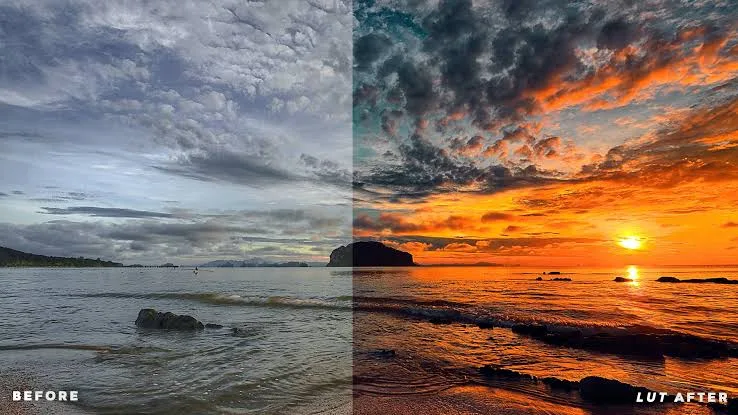
- LUTs (Look-Up Tables) — A LUT is a preset color formula you apply in one click. Film studios have used them for years; now you can download thousands. Treat them as a starting point, not a final answer. Always tweak after applying.
- Phone apps (VSCO, Snapseed, Lightroom Mobile) — Shockingly good. VSCO’s film emulations are excellent, and Snapseed is free and powerful. If you shoot on your phone, you can grade on your phone.
A photo editing software comparison can help you pick based on your volume and budget, but the honest advice is this: pick one and learn it deeply. Jumping between tools constantly is the enemy of a consistent style.
The 7-Step Workflow Pros Actually Use (Order Matters)
Get the order wrong and you’ll fight yourself the whole way. This is the sequence professional colorists follow, and it works for stills exactly like it does for film.
- Balance exposure and the histogram first. Get the tones in the right ballpark. No creative stuff yet.
- Fix white balance. Click on something that should be neutral gray, or nudge the temperature and tint until skin looks natural.
- Add contrast with curves. A gentle S-curve — shadows down a little, highlights up a little — is the single most powerful move in editing. It’s the secret to that “punchy” look.
- Correct individual colors with HSL. Isolate the red channel to dial down skin redness. Boost the blue channel for a richer sky. Change only what needs changing.
- Now grade. Open the color wheels. Push shadows toward your chosen cool tone, highlights toward your warm tone. Keep saturation low — 5–15 on each wheel is usually plenty.
- Mask locally. Warm the subject’s face while keeping the background cool. Darken a distracting bright corner. This is where good grades become great grades.
- Final touches. A subtle vignette to pull the eye in. A touch of sharpening. Maybe a whisper of grain for texture. Then walk away — come back tomorrow and you’ll see instantly if you overdid it.
Save this sequence as a preset. Next time you open a similar shoot, you’re already 80% there and just need to fine-tune.
Grading by Genre: What Works Where
A grade that looks stunning on a landscape will ruin a product photo. Here’s how pros approach each kind of shooting.
- Portraits: Protect the skin. Keep skin tones in that warm orange range no matter what you do to the rest of the image. Use masking so the grade hits the background, not the face. Over-saturating skin is the fastest way to look amateur.
- Landscapes: Lean into drama. Deep teal shadows, warm golden highlights, rich greens. Landscape is where you can push saturation the most — nature can handle it.
- Weddings: Warm, timeless, consistent across a full day of mixed lighting. Skip trendy looks that will feel dated in five years. The couple will look at these photos for decades.
- Street photography: Gritty and contrasty. Bleach bypass or a muted film matte both work beautifully. Color should enhance the urban texture, not fight it.
- Ecommerce and product: Almost no creative grading. Your job is accurate color so the product matches what arrives in the box. A subtle warm grade on lifestyle shots is fine; on pure product shots, keep it neutral.
- Editorial and fashion: Anything goes. This is where cross-processing, wild duotones, and aggressive teal-orange earn their keep. The bolder the concept, the bolder the grade.
Five Mistakes That Make a Grade Look Cheap
Every beginner makes these. Learn them now and skip the embarrassment.
- Cranking saturation to 100. More saturation isn’t more emotion — it’s more cartoon. Use Vibrance instead, which boosts muted colors without frying skin tones.
- Ignoring skin tones. If a face looks orange, green, or purple, nothing else matters. Check skin first, every time.
- Pushing every color wheel. You don’t need to tint shadows, midtones, and highlights. Usually one wheel — usually shadows — does 90% of the work.
- Grading on an uncalibrated monitor. If your screen is too warm or too cool, you’ll over-correct in the opposite direction. A calibrated display is non-negotiable for serious work.
- Never looking away. After 20 minutes of grading, your brain adapts to the look and you lose perspective. Take a 10-minute break, or flip back to the original with the before/after shortcut. You’ll be shocked at how far you drifted.
For more advanced techniques, these cinematic color grading secrets from working professionals are worth studying — the same principles apply to stills.
When to Just Outsource It (And What It Costs)
Here’s the truth nobody tells you: once you’re shooting paid work, your time is worth more behind the camera or with clients than hunched over a color wheel at 1 a.m. Professional color grading and retouching services handle the technical and creative heavy lifting while you focus on shooting. The photo editing cost per image varies by complexity, but for consistent batch work it’s often way cheaper than the hours you’d spend doing it yourself — and the results are more consistent because specialists do it every single day.
If you find yourself dreading the edit more than the shoot, that’s your signal. A professional retouching partner will match your style exactly, deliver on schedule, and give you back evenings you currently spend staring at sliders. The best photographers in the world don’t grade every image themselves — they direct the grade, and a team executes it.
A Few Hard-Won Tips From Working Colorists
Stuff that’ll save you months of trial and error.
- Shoot RAW. Always. RAW files hold way more color data than JPEGs, so you can push grades hard without the image falling apart. If you shoot JPEG, you’re grading with one hand tied behind your back.
- Start subtle, then add. It’s always easier to add more of an effect than to pull back from too much. Push the slider to where you think it looks right, then back it off by 30%.
- Build a reference board. Save screenshots of grades you love from movies, other photographers, magazines. When you get stuck, pull one up and try to match its feel. This trains your eye faster than anything else.
- Keep a consistent baseline. Pick one or two signature looks and use them across your portfolio. Variety is the enemy of recognition. Your style should be a sentence, not a paragraph.
- Grade for the output. A grade that looks perfect on your calibrated monitor might look muddy in a tiny Instagram thumbnail. Check your final images on a phone before posting.
Frequently Asked Questions
What is color grading in simple terms?
Color grading is the creative editing step where you shift the colors in a photo to set a specific mood or style. It comes after color correction, which fixes technical issues. Correction makes a photo accurate; grading makes it feel a certain way.
What’s the difference between color grading and color correction?
Color correction is technical — it fixes white balance, exposure, and contrast so the image looks natural and accurate. Color grading is creative — it stylizes the image with specific hues in shadows, midtones, and highlights to set a mood. Always correct first, grade second.
Is color grading the same as a filter?
A filter is a one-click preset that applies a fixed look. Color grading is the manual process of adjusting hue, saturation, and brightness across different tonal ranges. A filter is often a pre-baked color grade — but a hand-tuned grade will always look more refined and personal.
What’s a LUT in color grading?
A LUT (Look-Up Table) is a formula that remaps the colors of an image to a predefined look. You apply it in one click, then fine-tune. It’s basically a professional-grade preset, originally used in film. Treat it as a starting point, not a finished product.
Can you color grade a JPEG, or do you need RAW?
You can grade a JPEG, but you’ll hit quality walls fast. RAW files hold 2–4 stops more dynamic range and way more color data, so you can push shadows, shift hues, and adjust exposure without banding or noise. If you’re serious about grading, shoot RAW.
How long does it take to color grade a photo?
A basic grade on a well-corrected RAW file takes 2–5 minutes once you have a preset. A complex portrait with local masking and skin protection can take 15–30 minutes. Wedding galleries of 500+ images are usually graded with a synced preset in under an hour, then fine-tuned individually.
Why do my color grades look fake or over-processed?
Almost always because saturation is too high, skin tones are distorted, or every tonal range is tinted. Use Vibrance instead of Saturation, mask your grade away from skin, and remember that a single color wheel — usually shadows — does most of the work. Subtlety reads as professional.
Should I outsource color grading?
Outsource when your shooting volume is high enough that editing time costs you more than the service fee — typically once you’re booking 10+ paid shoots a month. A good retouching partner matches your style exactly, delivers consistently, and frees you to shoot more.
One Last Thought
Color grading is where a photo stops being a record of what happened and starts being how you felt about it. The technical side — the wheels, the curves, the LUTs — you can pick up in a few weekends. The artistic side — knowing which mood fits which moment, and when to stop — takes years, and that’s exactly why it’s worth chasing. Start subtle. Be consistent. And remember: the best grade is the one people feel but never notice.